Accounts
Add bank accounts, track balances and interest, and move money between accounts.
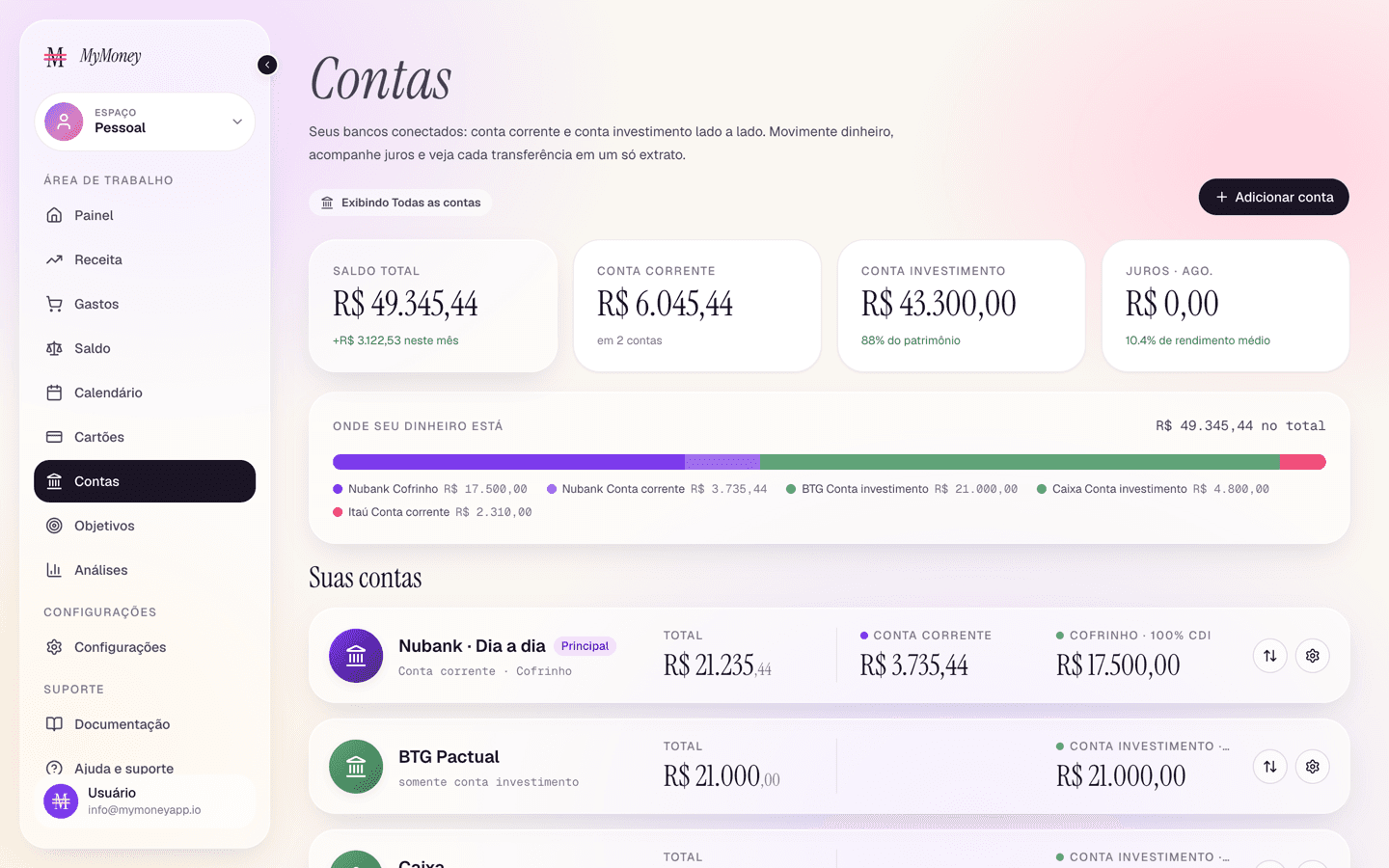
The Accounts page manages your bank accounts — checking, savings pots, and their balances.
Adding an account
- Click Add account (top right).
- Fill in the modal:
- Bank — pick it from the list (Nubank, Itaú, Bradesco, Banco do Brasil, Caixa, Santander, Inter, C6 Bank, PicPay, Sicoob, Sicredi, BTG Pactual, XP, Mercado Pago and Wise). A listed bank brings its own logo and brand color, shown on the account card, in charts and next to every transaction. If your bank is not listed, choose Other bank and type its name: it gets the default bank icon;
- an optional nickname;
- Primary account switch — income is deposited here by default;
- Icon color — used across charts and lists. For a listed bank the color is the brand's and stays locked; you can only pick a color for Other bank;
- Checking balance — your current balance today;
- Savings pots — add as many as you need, each with its own balance and interest setting (flat APY, monthly rate, or % of CDI for Brazilian accounts).
- Save. The account appears in the rail immediately.
The Add button hides when your plan's account limit is reached — see Plans.
Reading the page
- Account rail — one card per bank showing checking, savings pots, the primary badge, and interest earned.
- KPI row — total balance (with change), checking total, savings share, and interest earned this month.
- Allocation — a bar and donut showing where your money sits.
- Balance trend — your balance month by month.
- All transactions — every account movement, filterable by All / Income / Spending / Transfers / Interest, with its own period control.
Viewing one or several accounts
By default the page shows every account added together — the chip under the title reads "Showing all accounts". Selecting accounts narrows the whole page (KPIs, allocation, balance trend, and the transactions table) to just those, which is how you answer questions like "how much is really in my main bank?" without doing the math yourself.
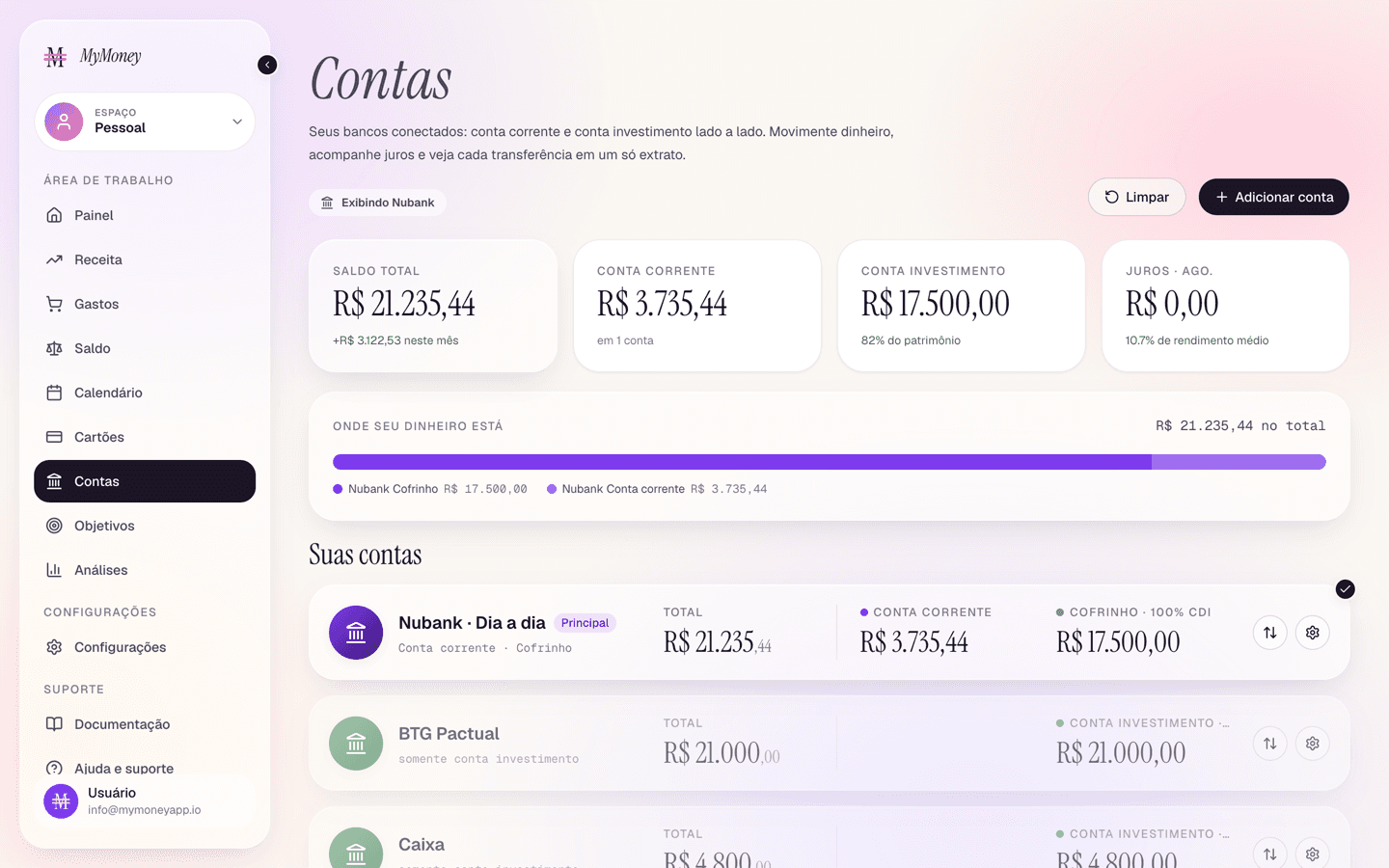
Select a single account
Click anywhere on a bank's card in Your accounts. The card gets a ring and a check mark, every other card dims, and the chip under the title changes to that bank's name.
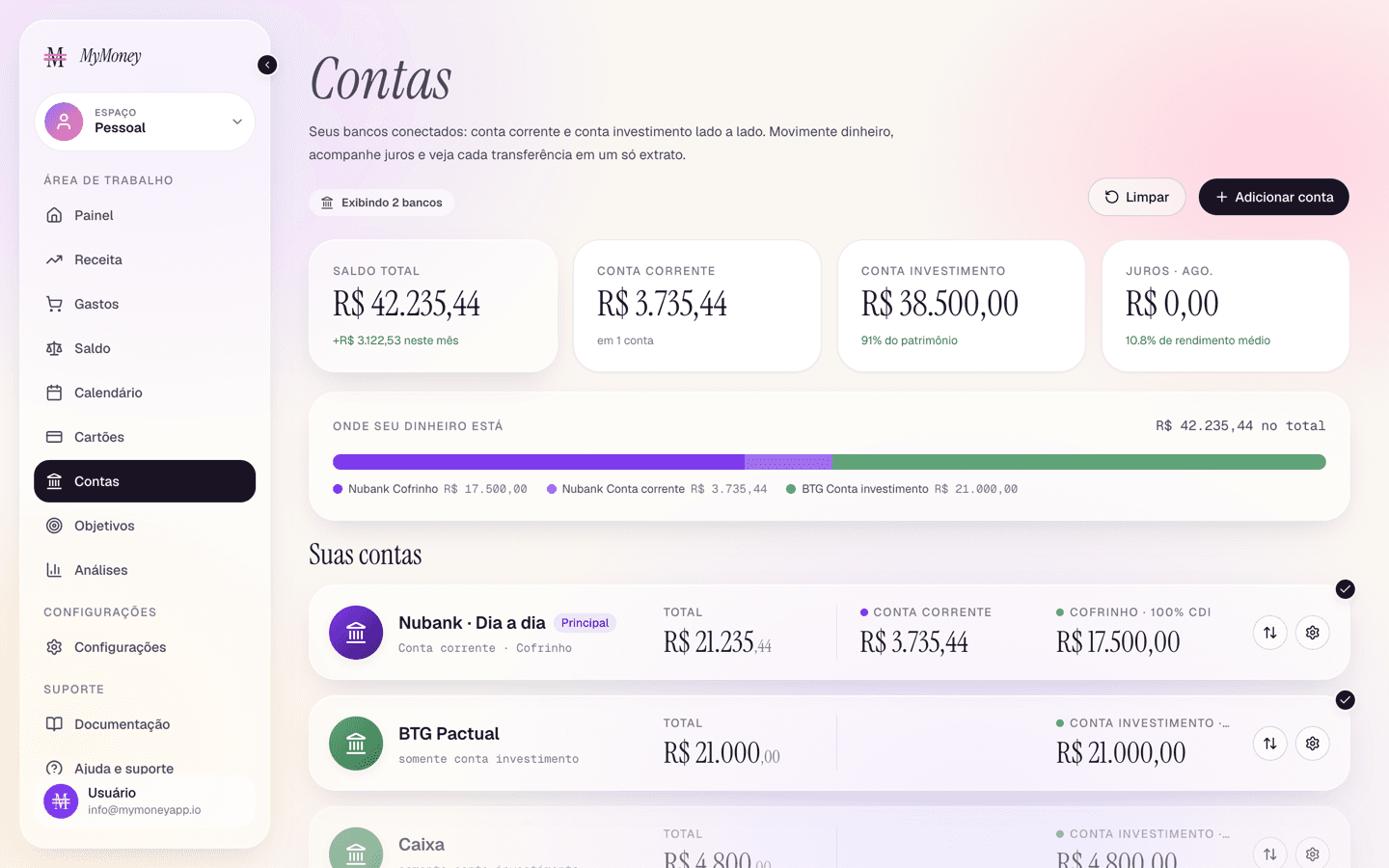
Select several accounts
Click a second card (and a third, and so on) to add it to the selection. Each selected card keeps its check mark, and the chip counts them — "Showing 2 banks". Every figure above the rail is now the sum of just those accounts.
Clear the selection
- Click a selected card again to remove that one account.
- Or click Reset, which appears in the page's top-right corner as soon as anything is selected, to go back to all accounts at once.
The selection lives in the page address, so you can bookmark or share a scoped view — for example only your salary account — and it opens the same way next time.
Moving money between accounts
- Click the Transfer icon on any bank's card.
- Pick From and To (the swap button flips them), enter the amount — Max fills the available balance — and confirm.
- Both balances update instantly, and the transfer shows up in the transactions table.
Editing or removing an account
Click the Manage (gear) icon on the bank's card. You can change any field, or Delete account — deletion asks for confirmation and explains what happens to its data.
Changing the Bank swaps the logo and color right away, everywhere. Accounts created before the bank list existed show as Other bank with the name you gave them; open Manage and pick the bank from the list to get its logo and color.