Dashboard
Your home page: total balance, goals, upcoming bills, and recent activity at a glance.
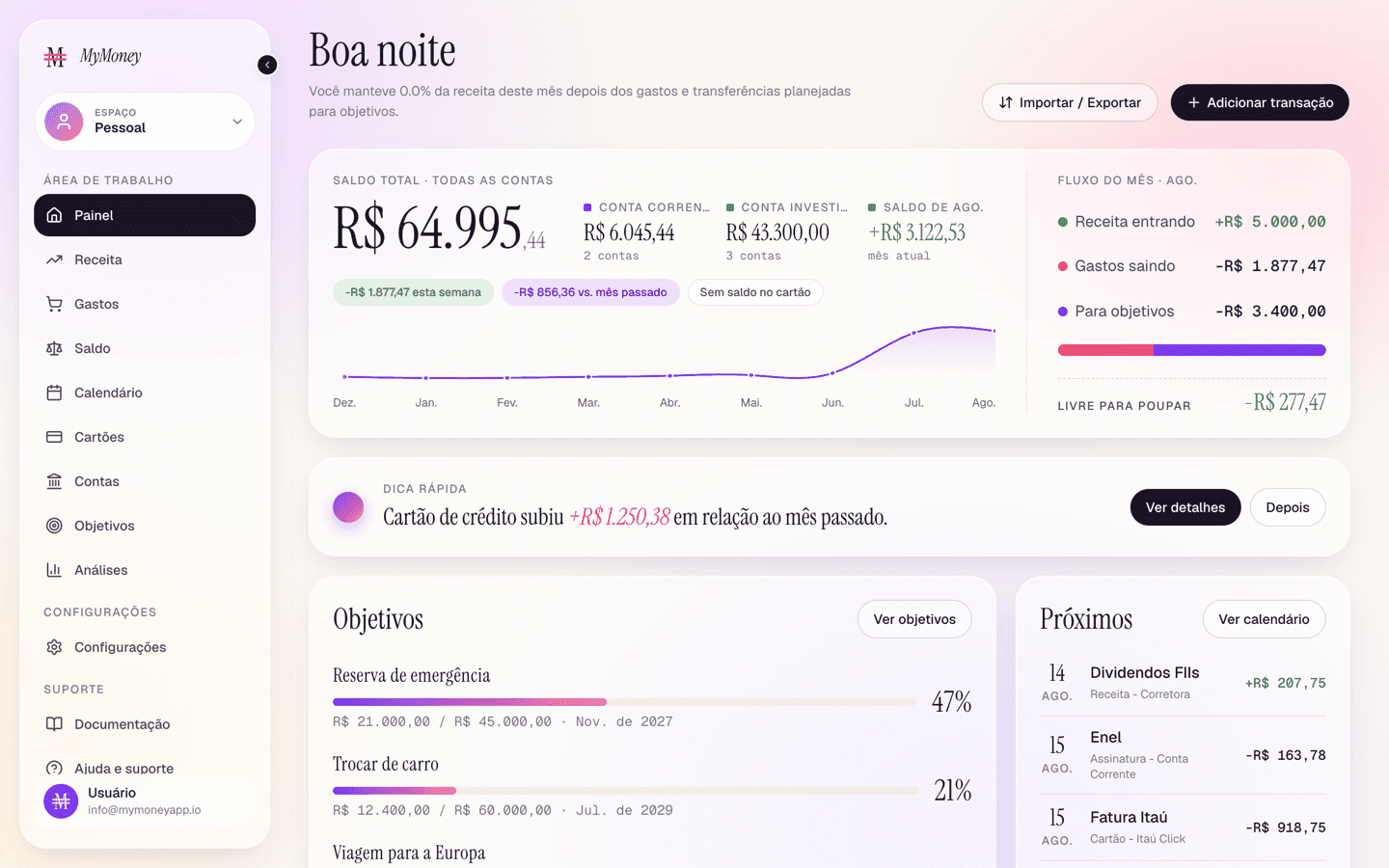
The Dashboard is the first page after signing in. It answers "how am I doing right now?" in one screen.
What's on it
-
Greeting header — a personalized summary line, plus the Add transaction and Import/Export buttons.
-
Month in review — during the first 7 days of a month, a card recaps the month that just ended: income, spending, what you kept (and what share of income that was), and the category most of it went to. Every plan sees these totals; two charts beside them are part of Analytics (Premium): the top categories against the month before, and the spending pace (how spending built up day by day, against the month before). On other plans both show blurred example shapes (your real data isn't loaded) behind one Unlock the charts button that opens the upgrade sheet. Below the totals, What changed is a short written analysis on Premium: up to four sentences comparing the month with the one before (spending, the category that moved the most, the share of income kept, and income when it moved 5% or more). They are worked out from your own totals by fixed rules, with no AI involved. On other plans that section shows blurred example lines (your real analysis isn't loaded) with an Unlock the analysis button. Email me this on the 1st turns on the monthly recap email (see Settings); the × hides the card until next month, on this device. The recap email's link opens the dashboard with the card showing on any day.
-
Balance overview — your total balance across bank accounts, a trend sparkline, and this month's cash flow. Click through to the Accounts page for detail.
Credit card spending never lowers this number — cards are settled later by their statement bill. See Credit card statements and bills.
-
Quick tip (Plus+) — a contextual suggestion based on your data, with a one-click action.
-
Goals — progress bars for your top goals, linking to the Goals page.
-
Upcoming — your next scheduled money events: bills, subscriptions, expected income, and credit card bills with their live amounts. An unpaid card bill shows a red "Payment due" badge from its due day onward — click it to pay (see the bill modal).
-
Recent transactions — your latest activity in a table you can search, filter (All / Income / Expenses), sort, and page through. Click any row to edit that transaction.
Common tasks from here
- Add an expense or income — click Add transaction (top right).
- Pay a card bill — click the bill row in Upcoming.
- Import your history — click Import/Export (see Import and export).