Households (shared workspaces)
Manage money together: shared accounts, cards, goals, and transactions. (Premium)
A household is a shared workspace (Premium) for managing money with a partner or family.
How it works
- Everything created inside the household — accounts, cards, transactions, goals, categories — is visible to every member.
- Your Personal workspace stays completely separate; use the sidebar's workspace switcher to move between them.
Setting one up
- Create a household from Settings (or the workspace switcher, or during onboarding).
- Invite members by email — each invitation sends a link; the invitee signs in and accepts. Pending invitations can be revoked, and they expire on their own.
- Members appear in Settings with owner/member badges. Owners can rename the household or remove members; members can leave; owners can delete the household entirely (with confirmation).
Switching workspaces
Open the switcher
The control at the top of the sidebar always shows which workspace you are in — Space: Personal or the household's name. Click it to open the picker, which lists every workspace you can enter with its current balance beside it, and the one you're in marked with a check. Invite and Manage shortcuts sit at the bottom.
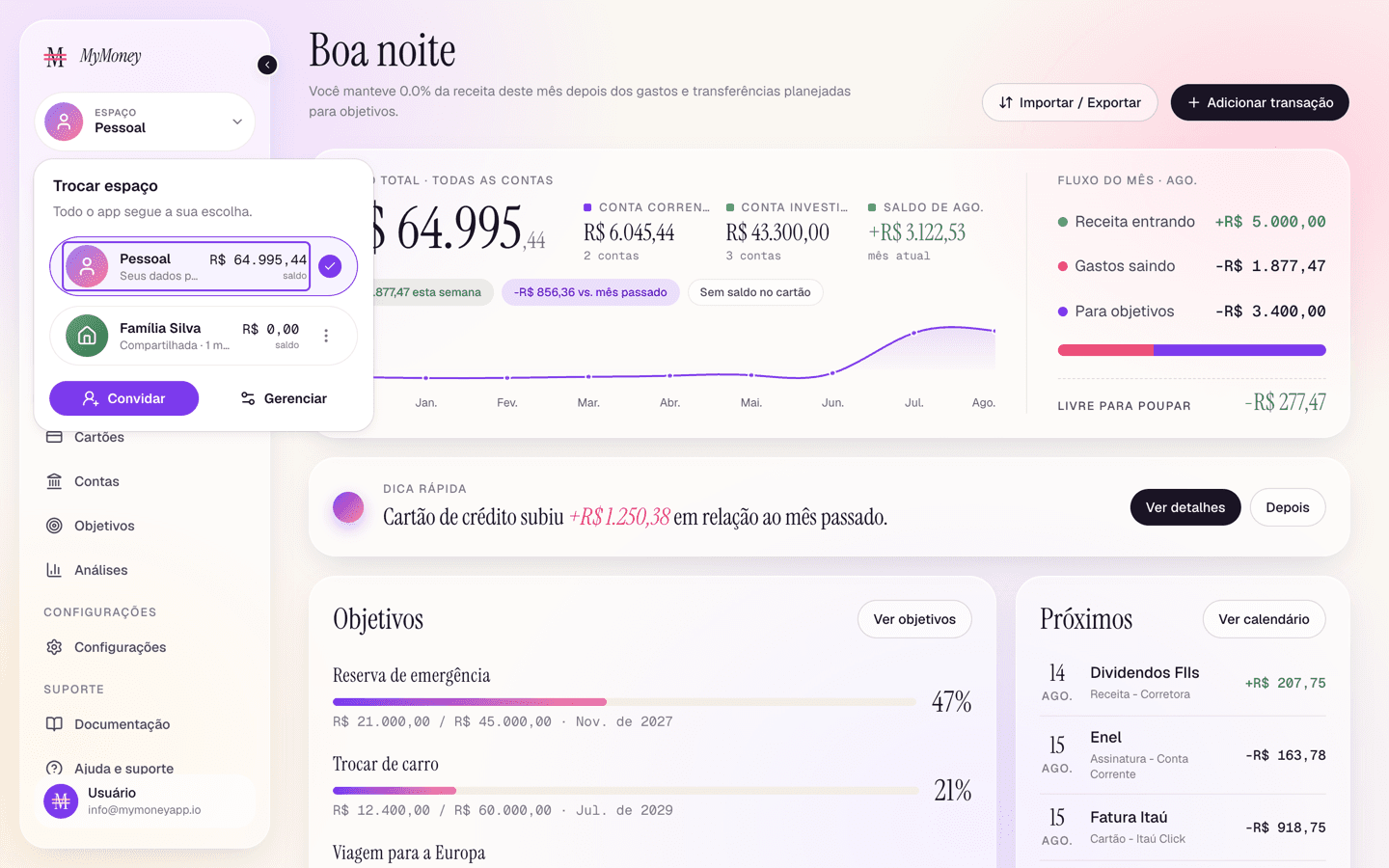
Pick a workspace
Click a row to switch. The whole app follows immediately: the sidebar control changes to the new space's name and icon, and every page — dashboard, spending, accounts, cards, goals, analytics — reloads with that workspace's data only.
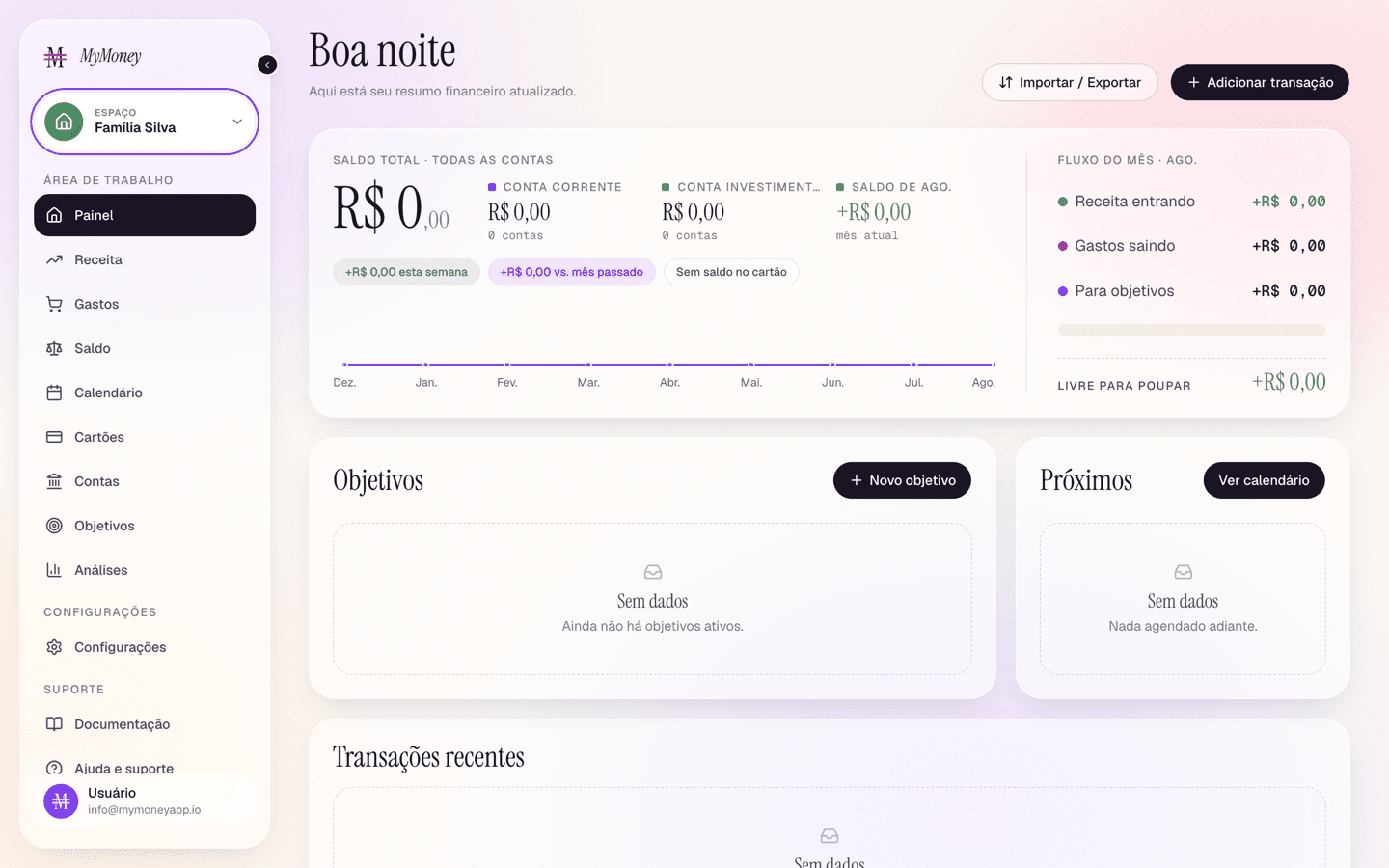
The screenshot above is a brand-new household, which is why every figure reads zero and the cards say "no data": a household starts empty and fills up as members add accounts, cards, and transactions inside it. Nothing crosses over from your personal space, and nothing you add here shows up there.
What stays with you
Your choice is remembered per account, so the app opens in the same workspace next time and on your other devices. Everything you create while a household is active belongs to that household and stays visible to its members even after you switch back.