Adding and editing transactions
Record expenses and income: categories, recurrence, payment methods, and installments.
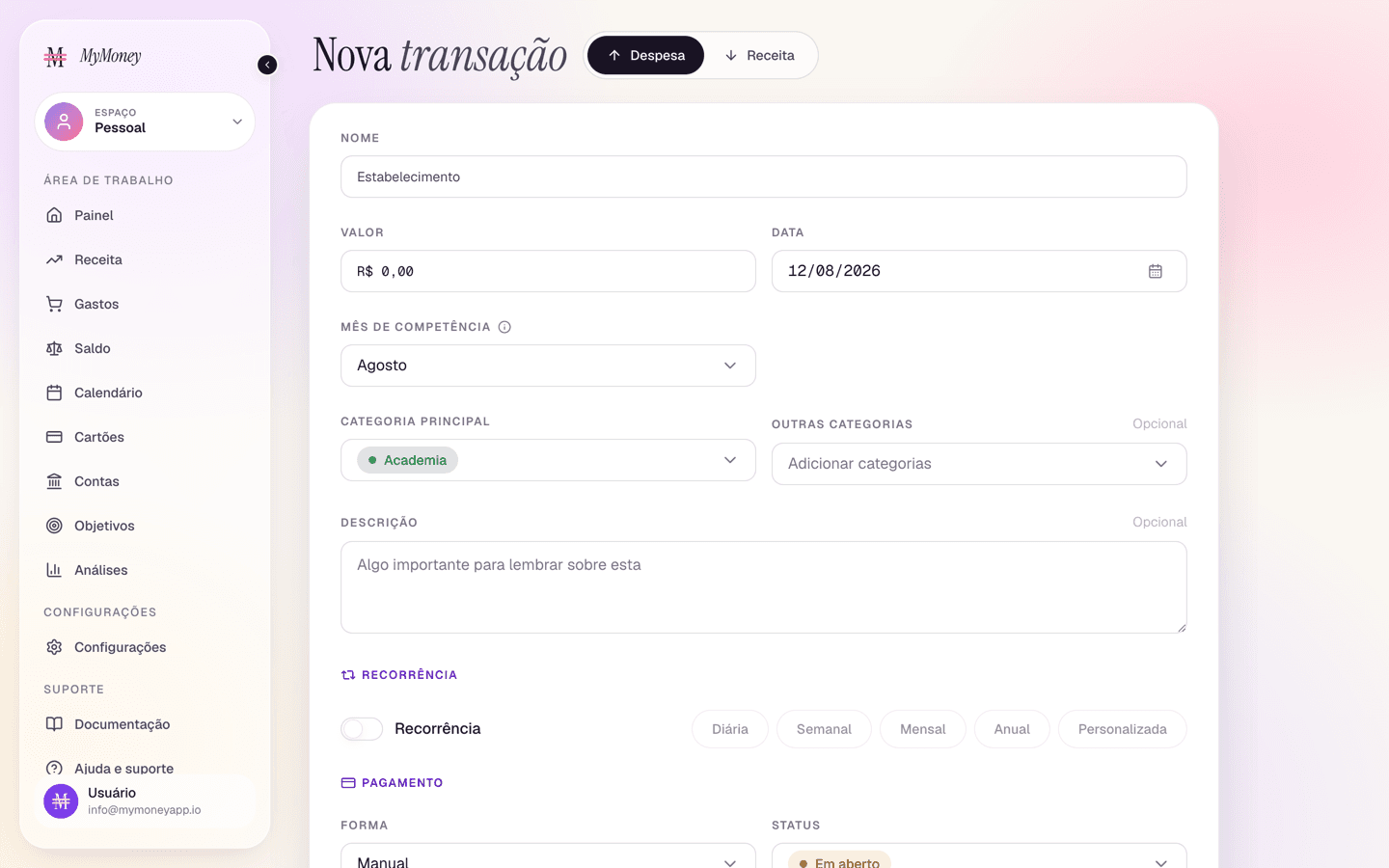
Transactions are the heart of the app. Add them from the buttons on the Dashboard, Spending, Income, or Cards pages — desktop opens a modal; on mobile it's a full page. Every field has an info icon beside its name: hover (or tap) it to see what the field is for.
Adding an expense
-
Click Add transaction and keep the type on Expense.
-
Enter a name (e.g. "Whole Foods Market"), the amount, and the date.
-
Pick a primary category — type a new name to create one on the spot. Add extra categories if the purchase spans several.
-
In the Payment section, choose the method. The list is everything the money can actually come from, each entry by its own name:
- a checking account, listed under its bank with the balance it draws on in parentheses — "Nubank (Checking)" — and deducted from that account immediately. It defaults to your primary checking account. If a bank has two accounts in the same list, each one shows its own name instead ("Nubank · Conta Corrente");
- a credit card by name (shown with its last 4 digits) — charged to the card instead. Card charges don't touch your bank balance; they're settled by the card's bill later.
Savings and investment accounts are never offered here: spending always comes out of checking or a card. Add a checking account on the Accounts page if the list is missing one.
-
Optionally set the status (Paid / Unpaid / Upcoming), a due date, installments, and the payment date.
-
Click Add expense.
Adding income
Switch the type to Income. Instead of a payment method you choose the deposit account (defaults to your primary account). The amount is added to that account when saved.
Recurring transactions
Turn on the Recurring switch for anything that repeats:
- pick a frequency chip — Daily, Weekly, Monthly, Yearly — or Custom and type the interval in days ("repeat every 15 days", for example);
- set the start date, and optionally an end date.
Future occurrences are projected onto the Calendar automatically — you don't need to enter them by hand.
Which month a transaction counts in
The month a transaction shows up in on Spending, the Dashboard and reports is set by the Fiscal month field, which follows the transaction's date by default. The due date and payment date only set the status and the position on the Calendar; they never move the transaction to another month.
For an expense that belongs to next month (a bill you enter today that is only due next month, for example), do one of two things:
- set the Date to the day it is due or will be paid; or
- keep today's date and pick next month as the Fiscal month.
Fiscal month
The fiscal month files a transaction under the accounting month it belongs to, even if it's dated in another. Classic example: a card statement due July 5 that covers June spending — set its fiscal month to June and every monthly report groups it correctly. It is available on every plan.
The This month, Quarter and Year to date filters use the fiscal month. A custom date range uses the transaction's actual date, since a fiscal month has no day.
Editing categories
Click a selected category pill to open the category editor: rename it, pick a color, and choose an icon (from the icon grid) or an emoji. The look carries across every chart and table.
Editing or deleting a transaction
Click any transaction row anywhere in the app to reopen this form pre-filled. Delete asks for confirmation — deleting also reverses the transaction's effect on the account balance.