Import your bank statement, without handing over a password.
Export the OFX, CSV or XLSX file straight from your bank's app, drop it in MyMoney and review before you confirm. Months of history come in within minutes, with no bank login anywhere in the process.
7 days free · No credit card · Cancel anytime
- OFX, CSV and XLSX
- Works with any bank that exports a file
- Account and card statements
- Review before confirming
- No bank login
What an OFX file is
OFX (Open Financial Exchange) is the standard format banks and card issuers use to hand over a statement as a file. It is structured text in which each transaction carries a date, an amount, a name and a memo, plus an identifier for the account or card. Accounting software has read OFX for decades, and so do most personal-finance apps.
Most banks export OFX or CSV from the statement screen in their app or online banking — in Brazil, Nubank, Itaú, Bradesco, Banco do Brasil, Inter, Santander and Caixa all offer it, usually behind an "export" or "download statement" button with a choice of period and format. The exact path changes from app to app and over time, but the logic is always the same: pick the period, pick OFX (or CSV if OFX isn't offered) and save the file to your phone or computer.
The advantage of OFX over PDF is simple: a PDF is a picture of the statement; OFX is the statement as data. That is what lets MyMoney turn every line into a real transaction, with the right date, amount and account.
How to import in three steps
Import is part of the Plus plan and above. Open Import/Export in the dashboard header (or the menu, on mobile) and follow the three steps. The full walkthrough, with sample files to try, is in Import and export.
- 1. Export from the bank. In the app or online banking, go to the statement, pick the period and download it as OFX. If the bank only offers CSV or XLSX, that works too.
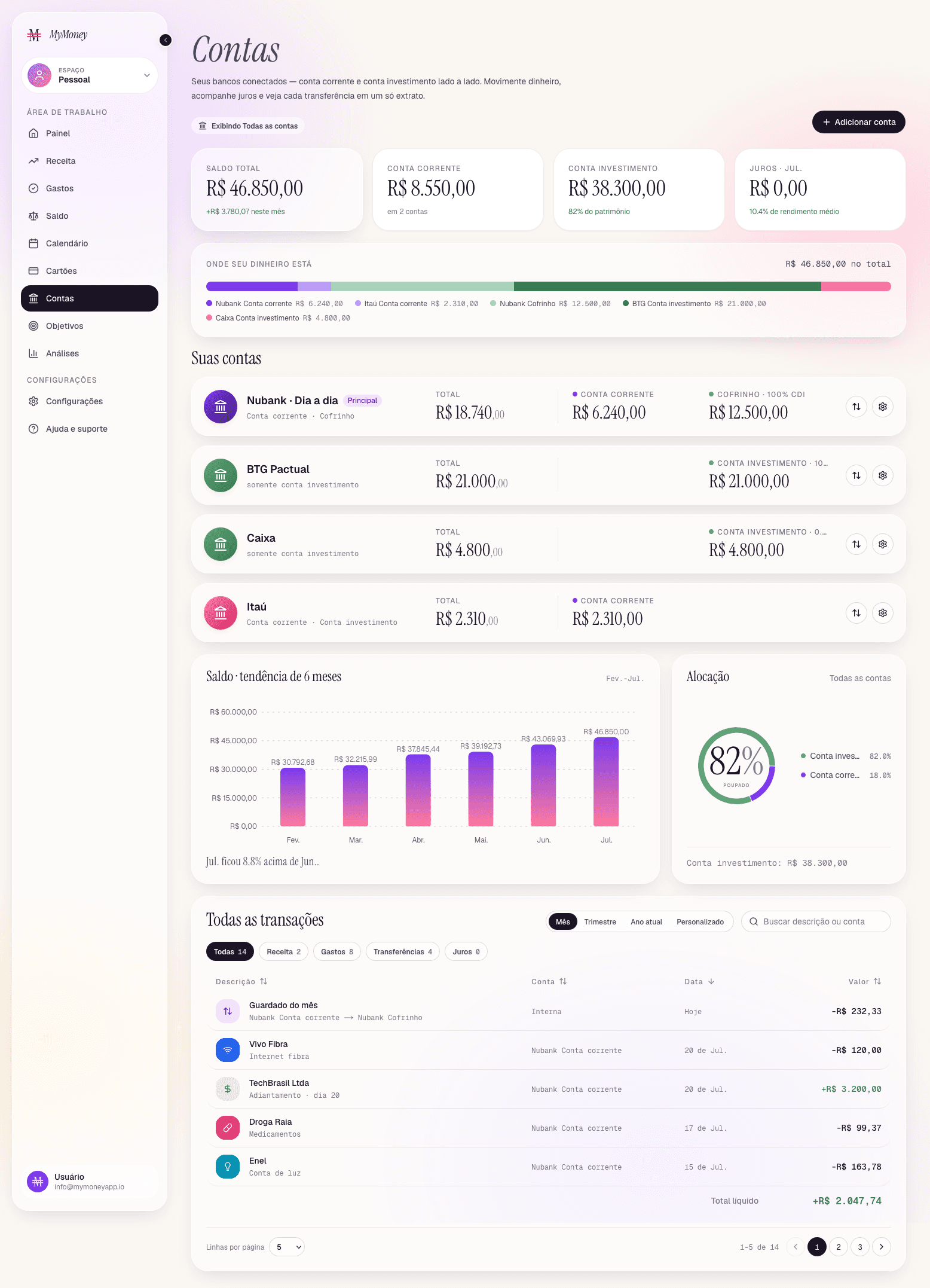
- 2. Drop the file in MyMoney. On the Import tab, drag in the `.ofx`, `.csv` or `.xlsx`. The app reads it and opens a review step: it shows how many rows will come in, flags errors line by line, asks for a date or amount where one is missing, and lists the recurring subscriptions it detected.
- 3. Confirm and review categories. Accounts and cards named in the file that don't exist yet are created on the spot. OFX carries no category, so after the import you adjust categories in the transaction list and the spending charts start reflecting the history.
OFX, CSV or XLSX: which format to choose
Prefer OFX whenever the bank offers it. It is the most predictable format: the sign of the amount decides the type (negative becomes an expense, positive an income), the statement identifier becomes the account or card name, and the file doesn't depend on how the bank decided to name its columns that month.
CSV and XLSX come in when the bank only exports a spreadsheet, or when you already keep your own history in one and want to bring it all in at once. Those formats give you more columns (category, status, instalments, recurrence), which helps when migrating from another app or from a budget spreadsheet.
Card statements work too: in a card OFX, the identifier becomes the credit card's name and the transactions feed its statements, with closing and due dates tracked in Card bills.
After the import: what changes in your balance
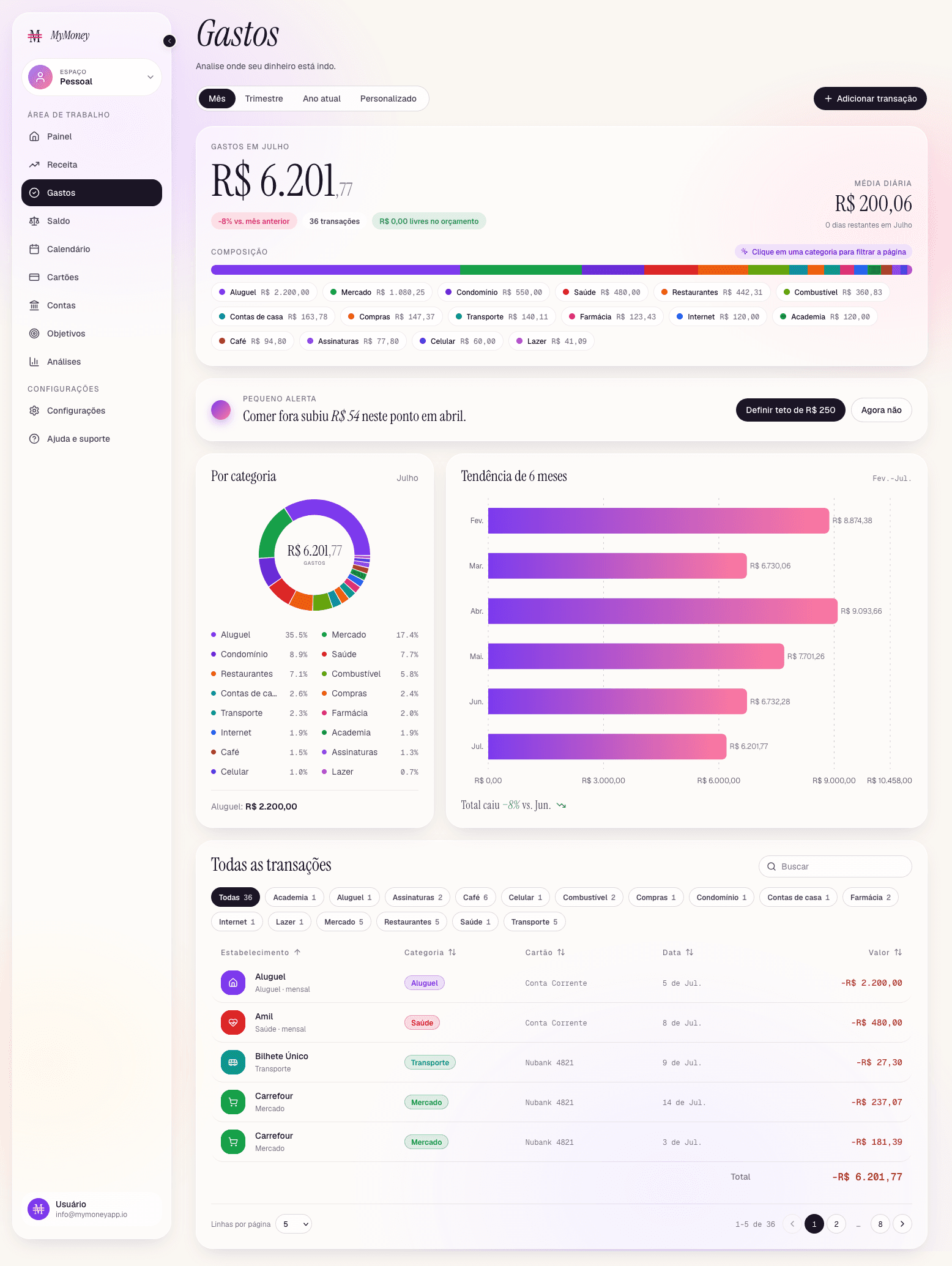
One important rule: imported history is not reapplied to account balances. The balance you entered when creating the account already reflects the past, so bringing in six months of statements never counts anything twice. What the import does is fill in the history: spending by category, income by month, recurring subscriptions and the month-over-month comparison.
From there the app answers what the statement alone can't: how groceries this month compare with last, which subscriptions have piled up, how much was left. And since export in CSV, XLSX or OFX is available at any time, the history you brought in stays yours — re-importable elsewhere if you ever decide to leave.
- Do I need to connect my bank account to MyMoney?
- No. Import works by file: you download the statement in your bank's app and upload it to MyMoney. No password or bank token ever passes through the app. See Finance app without a bank connection.
- Which banks work?
- Any bank or card issuer that exports OFX, CSV or XLSX. In Brazil, Nubank, Itaú, Bradesco, Banco do Brasil, Inter, Santander and Caixa offer it from the app or online banking; the format and path vary, so look for "export statement" on the statement screen.
- My bank only exports PDF. What now?
- MyMoney doesn't read PDF. Check whether online banking (the web version) offers OFX or CSV — it usually has more options than the app. If it doesn't, the quick entry modal takes seconds per transaction.
- Which plan includes import?
- Plus and Premium. Starter has manual entry. Prices are in Pricing, and the 7-day trial asks for no credit card.
- What happens to categories from an OFX file?
- OFX carries no category. After confirming, adjust categories in the transaction list; the review step detects recurring series to save you work.
- Can I take my data with me later?
- Yes. CSV and XLSX export keep every column and re-import as they are; OFX export produces a standard statement that other finance apps can read.
Six months of statements, in five minutes.
Download the OFX from your bank's app, drop it in MyMoney and review before confirming. 7 days free, no card.
Try free for 7 days7 days free · No credit card · Cancel anytime · Pricing